Stop the Lag: A Guide to Fixing Slow WooCommerce Stores
Stop the Lag: A Guide to Fixing Slow WooCommerce Stores
Why a Slow WooCommerce Store Is Costing You Sales Right Now
Fix slow WooCommerce performance and you fix one of the most direct causes of lost revenue in e-commerce. Here’s a quick-start checklist of the most impactful fixes:
- Upgrade your hosting — move to managed WordPress hosting with SSD, PHP 8+, and object caching
- Enable caching — use a plugin like WP Rocket, but exclude cart and checkout pages
- Use a CDN — Cloudflare is a strong free option to reduce latency globally
- Optimize images — compress files and convert to WebP format
- Enable HPOS — migrate to High-Performance Order Storage under WooCommerce > Settings > Advanced > Features
- Clean your database — remove transients, old sessions, and orphaned metadata
- Audit your plugins — deactivate one by one to find performance culprits
- Minify CSS and JavaScript — defer non-critical scripts, especially on checkout pages
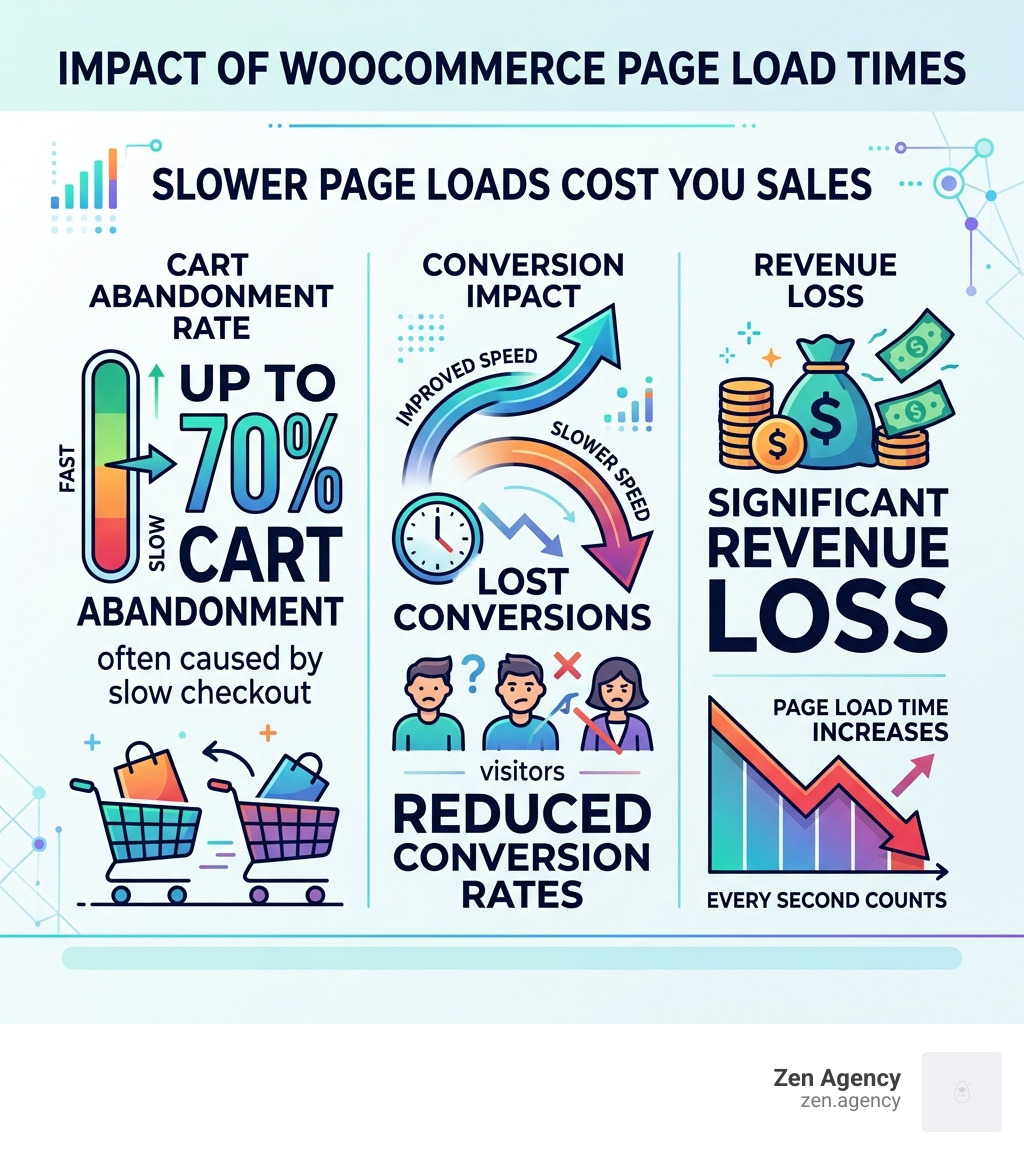
Every second your WooCommerce store lags, customers are leaving. Google and Deloitte’s Milliseconds Make Millions study found that a 100ms improvement in load time produces an 8.4% increase in retail conversions. And the checkout page is the most vulnerable spot — studies show that 70% of shopping carts are abandoned because of a sluggish checkout experience.
That’s not a UX inconvenience. That’s revenue walking out the door.
The challenge is that WooCommerce slowdowns don’t have one single cause. They stack up across your server, your database, your plugins, your images, and your checkout flow — each layer adding friction that your customers feel, even if they can’t name it.
I’m Joseph Riviello, CEO and Founder of Zen Agency, and with over 22 years of experience in digital marketing and web performance, I’ve helped businesses fix slow WooCommerce stores and turn their sites into high-converting, fast-loading assets. In this guide, I’ll walk you through every layer of the problem — and exactly how to fix it.
Handy Fix slow WooCommerce terms:
Critical Reasons to Fix slow WooCommerce Performance in 2026
In 2026, speed isn’t just a “nice-to-have” feature; it is a fundamental requirement for e-commerce survival. If you are operating a store in the US—whether you’re based in Wilkes Barre, Scranton, or Billings—your customers expect instant gratification.
The data is sobering. Amazon’s classic study revealed that a latency increase of just 100 milliseconds resulted in 1% fewer orders. When you consider their multi-billion dollar revenue, that tiny blink of an eye costs them a fortune. For your store, the impact is mirrored in cart abandonment. Research indicates that 70% of shopping carts are abandoned specifically because of a sluggish checkout process. If a customer has to wait more than three seconds for a page to load, there’s a 53% chance they’ll simply close the tab.
Beyond immediate sales, performance dictates your visibility. Google’s Core Web Vitals, specifically the Interaction to Next Paint (INP) metric, now play a massive role in search rankings. INP measures how responsive your site feels when a user clicks a button or interacts with a menu. If your “Add to Cart” button feels “sticky” or delayed, Google notices, and your rankings will suffer.
Furthermore, mobile responsiveness is no longer optional. With the majority of retail traffic coming from mobile devices, a slow desktop site usually translates to an unusable mobile site. To maintain high customer retention and lower bounce rates, you must fix slow WooCommerce issues at the root.
Optimizing the Foundation: Hosting and Server-Side Fixes
Think of your hosting as the engine of your store. You wouldn’t put a lawnmower engine in a freight truck and expect it to haul tons of cargo. Many store owners start on cheap shared hosting, but as your product catalog and traffic grow, these plans become a bottleneck.

To truly fix slow WooCommerce issues, we recommend moving to Managed WordPress Hosting. Unlike shared hosting, where you compete for resources with thousands of other sites, managed hosting provides dedicated resources. In 2026, your server should ideally be running PHP 8.4. Upgrading from older versions like PHP 5.6 to PHP 7 or 8 can provide a 10-20% speed boost instantly because newer versions handle code much more efficiently.
Key server-side requirements for a healthy store include:
- Memory Limits: Ensure your PHP memory limit is set to at least 512MB (1024MB is better for high-traffic stores).
- OPcache: This stores pre-compiled script bytecode in the server’s memory, so the server doesn’t have to load and parse scripts on every single request.
- HTTP/3: Ensure your host supports the latest web protocols for faster data transfer.
- Object Caching: Using Redis or Memcached allows the server to store database query results in memory, drastically reducing the load on your database.
According to the official Troubleshooting a slow site documentation, determining the root cause is the first step. Use a tool like Pingdom or Google PageSpeed Insights to check your Time to First Byte (TTFB). If your TTFB is over 1 second, your server hardware is likely the primary bottleneck.
Finally, implement a Content Delivery Network (CDN) like Cloudflare. A CDN stores copies of your site’s static files (images, CSS, JS) on servers all over the world. If a customer in Scranton visits your store, the files are served from a nearby Pennsylvania node rather than a server halfway across the country, reducing geographic latency.
How to Fix slow WooCommerce Database Bloat
As your store processes orders, the database grows. Over time, it accumulates “junk” like expired transients, old coupon data, and thousands of rows of “postmeta” that slow down every search and page load.
One of the most effective technical fixes is ensuring your database tables use the InnoDB engine instead of the older MyISAM. InnoDB is like a shared Google Sheet where multiple people can edit different rows at once; MyISAM is like an old Excel file that locks the entire document whenever someone makes a change.
| Feature | MyISAM | InnoDB |
|---|---|---|
| Locking Level | Table-level (Slow) | Row-level (Fast) |
| Data Integrity | Basic | High (Supports Transactions) |
| Performance | Good for Read-heavy | Superior for E-commerce |
| Crash Recovery | Poor | Excellent |
To further fix slow WooCommerce database issues, you must enable High-Performance Order Storage (HPOS). Historically, WooCommerce stored order data in the same table as blog posts. HPOS moves orders into their own dedicated, optimized tables. This can make admin order filtering up to 40 times faster and improve checkout throughput significantly.
We also recommend using the Query Monitor plugin to identify “autoloaded options.” If your wp_options table has more than 1MB of data set to “autoload,” WordPress is forced to load all that data on every single page load—even if it’s not needed. Cleaning out orphaned metadata and indexing your tables can breathe new life into a lagging backend.
Streamlining the Frontend and Checkout Experience
Once the server is fast, we need to look at what the customer actually sees. The “frontend” is often weighed down by massive images and unoptimized code.
Image Optimization is the lowest-hanging fruit. Never upload “raw” photos directly from a camera. Use a tool like Smush or ShortPixel to compress files. In 2026, you should be using the WebP format, which offers superior quality at a fraction of the file size of JPEGs or PNGs. Additionally, ensure you are serving the correct dimensions; there is no reason to load a 3000px image into a 300px thumbnail slot.
Minification and Deferral are also vital. Minification strips out unnecessary characters (like spaces and comments) from your CSS and JavaScript files. More importantly, you should “defer” non-critical JavaScript. This ensures the visual parts of your page load first, while the background scripts (like tracking pixels) wait until the user can actually see the content.
According to research on Why Your WooCommerce Checkout Is Slow, the checkout page is unique because it cannot be cached. Because it contains user-specific data like cart contents and addresses, every visit to the checkout page hits the server “live.” This makes frontend efficiency even more critical here.
Technical Steps to Fix slow WooCommerce Checkout
The checkout process is where the most complex “under the hood” work happens. WooCommerce uses AJAX cart fragments (the wc-ajax=get_refreshed_fragments call) to update the cart icon. On many sites, this script runs on every single page, even blog posts, adding significant lag. Disabling this on non-shop pages is a pro move to fix slow WooCommerce lag.
If you are struggling with a Slow Add-To-Cart In WooCommerce, the culprit is often a combination of database locking and slow external API calls. When a customer clicks “checkout,” your site might be trying to talk to:
- A payment gateway (Stripe, PayPal)
- A shipping calculator (UPS, FedEx)
- A tax service (Avalara, TaxJar)
- An email marketing tool (Klaviyo, Mailchimp)
If any of these external services are slow to respond, your checkout hangs. To fix this, reduce the number of external calls. Use “Table Rate” shipping instead of live API rates where possible, and choose payment gateways that process transactions on-site rather than redirecting the user to a third-party window.
Implementing a One-Page Checkout or allowing Guest Checkout can also reduce the number of database queries required to complete a sale, leading to a much snappier experience.
Troubleshooting Admin Panel and Plugin Bloat
Is your WordPress dashboard painfully slow? This usually isn’t a hosting issue; it’s plugin bloat. Every active plugin adds a layer of complexity. We often see stores running 50+ plugins when they only really need 15.
To fix slow WooCommerce admin performance, start with a Plugin Audit. Deactivate every plugin except WooCommerce and switch to a default theme like Storefront or Twenty Twenty-Five. If the speed improves, reactivate them one by one until you find the “resource hog.”
Other admin-specific fixes include:
- Heartbeat API: This API polls the server every few seconds to show notifications. Use a plugin to limit its frequency or disable it entirely when not needed.
- Dashboard Widgets: Disable unused widgets like “WooCommerce Status” or “WordPress News” that load data every time you log in.
- WP-Cron: WordPress uses a “pseudo-cron” system to handle scheduled tasks (like sending emails). On busy stores, this can trigger too often. Replacing WP-Cron with a real server-side cron job can significantly stabilize performance.
- Error Logs: Check your
debug.logfile. Often, a slow site is simply a site that is “screaming” errors into a log file in the background, consuming CPU cycles.
Finally, don’t ignore security. Brute-force attacks and bots crawling your site can consume massive amounts of server memory. Using Cloudflare to filter out malicious traffic before it even hits your server is one of the best ways to keep your admin panel responsive.
Frequently Asked Questions about WooCommerce Speed
What is the most common cause of a slow WooCommerce site?
The most common cause is a combination of poor-quality hosting and unoptimized images. E-commerce sites are resource-intensive; they require more PHP memory and faster CPUs than a standard blog. When you combine underpowered servers with 5MB product photos, the site will inevitably crawl.
How does High-Performance Order Storage (HPOS) improve speed?
HPOS improves speed by creating dedicated database tables for orders. In the old system, orders were mixed with posts and pages, making the database search through thousands of irrelevant rows just to find one transaction. HPOS streamlines this, leading to faster order processing and a much quicker admin experience.
Why is my WooCommerce checkout slower than my product pages?
Your product pages can be “cached” (turned into static HTML files that load instantly). However, the checkout page is dynamic and unique to every user. It has to perform real-time calculations for taxes, shipping, and inventory, meaning it must run the full “PHP execution” every time, exposing any weaknesses in your server or database.
Conclusion
At Zen Agency, we understand that your WooCommerce store is the lifeblood of your business. We don’t just provide “quick fixes”—we offer enterprise-grade solutions designed to help businesses scale. Whether you are in Scranton, PA, or Billings, MT, our team specializes in deep-dive performance auditing and custom development to ensure your store stays ahead of the competition.
Don’t let a slow site cap your growth. If you’ve tried the DIY steps and your store still feels sluggish, it’s time to bring in the experts. From HPOS migration to advanced server-side tuning, we have the experience to turn your lag into leads.
Ready to supercharge your store? Explore our Zen Agency WooCommerce Development services today and let’s get your performance back on track!