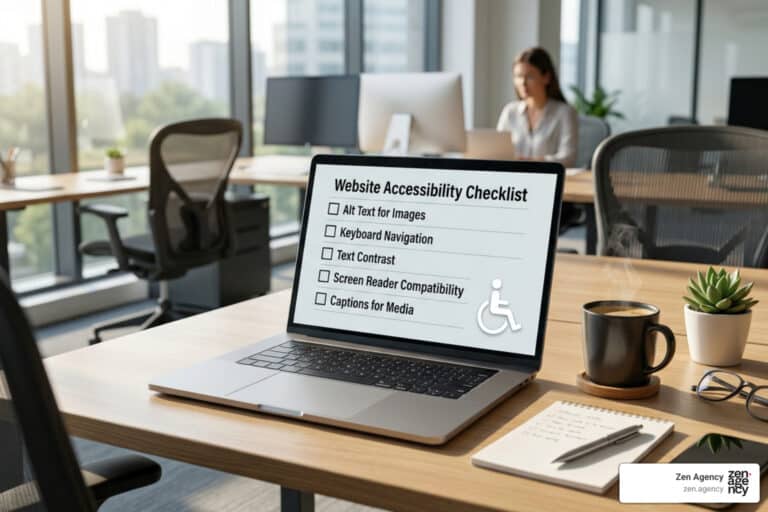
How to test your website for accessibility like a pro
Why Testing Web Accessibility Is No Longer Optional
Testing web accessibility means checking whether your website can be used by everyone — including people with visual, motor, hearing, or cognitive disabilities.
Here’s the fastest way to evaluate your site’s accessibility compliance:
- Run an automated scan using a tool like WAVE, axe-core, or Lighthouse to catch code-level issues (missing alt text, low contrast, unlabeled forms).
- Test keyboard navigation by unplugging your mouse and tabbing through every page — every feature should be reachable and usable.
- Test with a screen reader such as NVDA (Windows) or VoiceOver (Mac) to hear how your content is announced to visually impaired users.
- Check for WCAG 2.2 AA compliance — the current global standard referenced by the ADA, Section 508, and the European Accessibility Act.
- Combine both methods — automated tools catch roughly 30–40% of issues; the remaining 60% require human judgment and manual testing.
Accessibility isn’t just a legal checkbox. It’s about making sure real people can actually use what you’ve built — and avoiding costly lawsuits, fines, and lost customers in the process.
Traditional accessibility audits can cost £5,000 or more for a consultant to review your app and hand back a static PDF. The good news? With the right tools and process, your team can build a robust testing workflow at a fraction of that cost.
I’m Joseph Riviello, CEO of Zen Agency, and over my 22+ years in digital marketing I’ve seen how neglecting testing web accessibility can quietly erode a brand’s reach, reputation, and revenue — and how fixing it transforms both user experience and business results.
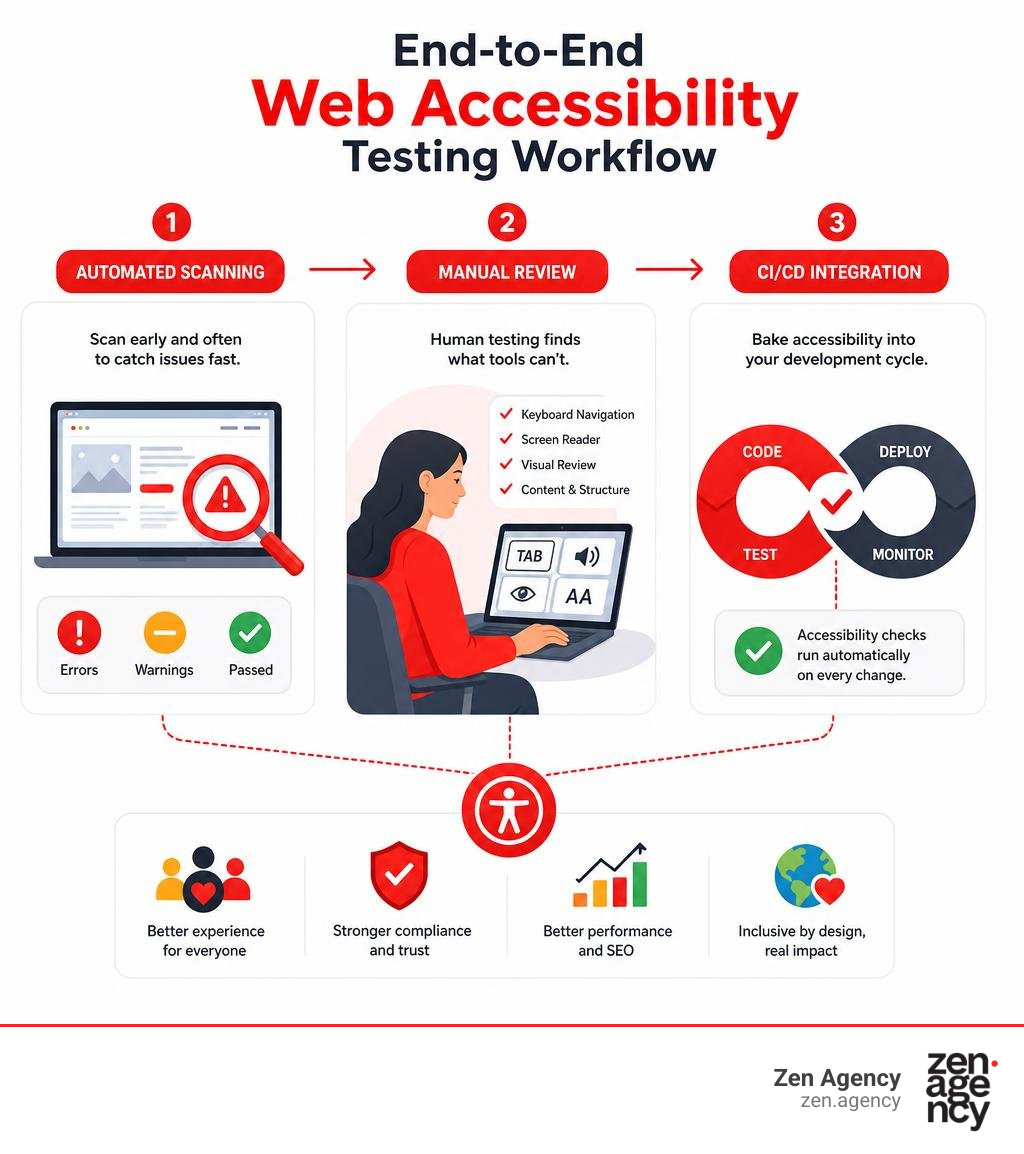
Know your testing web accessibility terms:
The Dual Strategy for Testing Web Accessibility
If there is one truth every developer, designer, and project manager needs to embrace, it is this: automated accessibility tools cannot do the job alone. Relying solely on automated software creates a false sense of security that leaves your organization exposed to compliance risks and leaves real users frustrated by insurmountable barriers.
To achieve genuine compliance and deliver an inclusive digital experience, we must adopt a balanced dual strategy. In the digital accessibility world, we often talk about the 40/60 rule:
- Automated testing identifies approximately 30% to 40% of web accessibility violations. These are structural, syntax-based, and algorithmic rules that computers can parse instantly.
- Manual testing catches the remaining 60% to 70% of barriers. These issues require human perception, context evaluation, and real-world testing using assistive technology.
Think of automated scanners as the smoke detectors in your building: they instantly sound the alarm when clear, predictable code violations occur. However, they cannot tell you if your building’s escape plan makes sense for someone in a wheelchair. That requires human evaluation.
If you are assembling your team’s audit toolkit, start by exploring our detailed guide on how to scan your site using the ultimate accessibility audit toolkit.
| Feature / Assessment | Automated Scanning | Manual Human Testing |
|---|---|---|
| Speed & Scalability | Blazing fast; tests thousands of pages in minutes | Methodical; requires human execution and time |
| Code Structure & Missing Tags | Excellent (catches missing alt attributes, duplicate IDs) | Good (verifies semantics in DOM inspector) |
| Color Contrast Evaluation | High for standard HTML/CSS text; low for images | Necessary for text over background images or canvas |
| Screen Reader Reading Order | Poor (cannot determine if logical sequence makes sense) | Excellent (verifies narrative flow and announcements) |
| Interactive Keyboard Traps | Moderate (detects missing focus attributes) | Excellent (tests actual user interaction and focus loops) |
| Alt Text Context Quality | Poor (cannot evaluate if alt=”dog” is meaningful context) | Excellent (verifies context and intent) |
What Automated Tools Can and Cannot Detect
Automated testing tools excel at analyzing standard Document Object Model (DOM) properties against deterministic Web Content Accessibility Guidelines (WCAG) rules. When you trigger an automated scanner, it evaluates code-level barriers rapidly across entire page structures.
What automated tools reliably detect:
- Missing element attributes: Unlabeled form input controls, images missing
altattributes, and buttons without accessible text. - HTML syntax and structural violations: Invalid ARIA roles, invalid ARIA attributes, duplicate element
idattributes, and improperly nested heading tags (to). - Basic programmatic color contrast: Low-contrast static HTML text calculated against single-color CSS backgrounds meeting WCAG 2.2 Level AA standard ratios (4.5:1 for normal text, 3:1 for large text).
- Missing document language tags: Absence of the HTML
langattribute required by screen readers to load proper pronunciation dictionaries.
What automated tools CANNOT detect:
- Contextual accuracy of alternative text: An automated tool will mark an image with
alt="picture"as a pass because the attribute exists, even though the description is completely useless to a visually impaired user. - Logical tab and focus order: Automated scanners cannot determine whether tabbing moves predictably through a multi-column layout or jumps wildly across the screen.
- Contrast on complex visual backgrounds: Tools struggle or fail entirely to evaluate text rendered over images, CSS gradients, translucent overlays, or video backgrounds.
- Custom interactive widget behavior: Scanners cannot tell whether a complex JavaScript mega-menu, custom accordion, or drag-and-drop file uploader communicates state changes correctly to screen readers.
For a comprehensive index of testing platforms categorized by target standards and compatibility, consult the official W3C Web Accessibility Evaluation Tools List.
Essential Manual Techniques for Testing Web Accessibility
Because automated tools leave major blind spots, manual testing forms the bedrock of any serious compliance strategy. At Zen Agency, when we perform thorough client site evaluations across Pennsylvania and Montana, our engineers manually walk through core user journeys using keyboard controls, screen readers, and screen zoom utilities.
Here are the essential manual techniques every team must master:
1. Keyboard Navigation Testing
Disconnect your mouse or disable your trackpad entirely. Use only the Tab, Shift + Tab, Enter, Spacebar, and arrow keys to navigate the entire website.
- Tab Order: Verify that focus moves in a logical, reading-order sequence from top to bottom, left to right.
- Focus Indicators: Ensure every interactive element (links, buttons, form fields, custom controls) displays a clear visual focus indicator (such as an outline ring) when focused.
- No Focus Traps: Confirm that focus never gets stuck inside modals, dropdown menus, or embedded widgets without a keyboard method to exit (such as pressing
Escape). - Skip Navigation Links: Check that a “Skip to main content” link appears as the very first focusable element on the page.
2. Screen Reader Testing
Screen readers convert on-screen text and programmatic DOM structures into synthesized speech or refreshable Braille displays. You should test your applications using the most prevalent screen reader and browser combinations:
- NVDA (NonVisual Desktop Access): Free, open-source software for Windows, best tested with Google Chrome or Mozilla Firefox.
- VoiceOver: Native to macOS and iOS, best tested with Apple Safari.
- JAWS (Job Access With Speech): The standard enterprise screen reader for Windows software environments.
During screen reader testing, close your eyes or dim your monitor. Listen to whether dynamic form errors, modal popups, accordion expands/collapses, and page navigation events are announced clearly via dynamic aria-live regions and proper semantic roles.
3. Screen Magnification & High DPI Testing
Users with low vision frequently utilize display scaling or screen magnification software (like ZoomText or native browser zoom up to 400%).
- Reflow (WCAG SC 1.4.10): Zoom your browser to 400% at a resolution width of 1280 pixels. Content must reflow into a single column without requiring horizontal scrolling or causing overlapping text.
- Focus Visibility Under Zoom: Ensure interactive controls do not zoom out of the active viewport frame or get obscured by sticky headers and fixed footers.
To review higher-education standards and practical test checklists, reference the Accessibility Testing Tools and Practices framework published by Harvard University.
Implementing Automated Toolchains Across Development Stages
Waiting until a web application is fully built before testing for accessibility is one of the most expensive mistakes a development team can make. Retrofitting accessibility into a finished production site requires rewriting legacy components, refactoring CSS layouts, and re-architecting complex JavaScript interactions.
Instead, modern teams adopt a shift-left approach — integrating testing web accessibility checks directly into every stage of the software development lifecycle (SDLC).
Unit and Integration Testing for Components
The earliest point to catch accessibility bugs is in component source code before it is committed to your main branch. Front-end developers building design systems in React, Vue, Angular, or Blade templates should write unit and integration tests that run automated accessibility audits on individual component renders.
Using helper libraries like jest-axe or @axe-core/react, developers can execute automated axe-core accessibility engine evaluations within local unit test runs:
- Semantic HTML Verification: Unit tests confirm that custom buttons use actual
elements or properrole="button"attributes with keyboard listener bindings. - Form Control Relationships: Tests verify that form components render explicitly linked
tags with matchingfor/idattributes, alongsidearia-describedbylinks for hint and validation error text. - State Management Annotations: Tests check that interactive component states, such as
aria-expanded="true/false"oraria-selected, update programmatically upon simulated user clicks.
To inspect production-ready test suite configurations and automated component testing architecture, review the open-source repository Djones-qa/accessibility-test-strategy.
End-to-End Auditing and CI/CD Automation
While unit tests validate isolated component markup, end-to-end (E2E) testing evaluates full pages within real browser environments (Chromium, Firefox, WebKit). Integrating accessibility engine extensions into automated browser frameworks like Playwright, Cypress, or Selenium allows your team to audit user flows like checkout processes, multi-step forms, and portal logins.
By embedding tools like @axe-core/playwright or Pa11y CLI into your Continuous Integration / Continuous Deployment (CI/CD) pipelines (such as GitHub Actions or GitLab CI), you can establish accessibility quality gates:
- Pull Request Triggers: Every pull request automatically spins up a headless browser environment and runs E2E accessibility tests against changed routes.
- Build Failure Thresholds: Configure pipeline runners to fail pull request builds automatically whenever “critical” or “serious” WCAG Level A or AA violations are detected.
- Automated Artifact Reporting: Attach detailed JSON or HTML audit logs to pipeline summaries so developers can see the exact CSS selector, DOM node, and WCAG success criteria linked to the failure.
For technical instructions on setting up Playwright browser automation with axe-core assertions, review the official guide for Accessibility testing | Playwright.
Managing Known Violations Without Masking Defects
When teams first introduce automated accessibility checks into legacy codebases, pipelines often fail instantly with dozens or hundreds of pre-existing rule violations. Halting all software delivery to fix years of accumulated technical debt overnight is rarely practical.
However, completely disabling automated rules or ignoring test failures across entire pages creates major compliance risks. The key is managing known technical debt responsibly without masking new defects:
- Violation Fingerprinting: Instead of ignoring full pages, record specific violation “fingerprints” combining the rule ID and exact CSS selector path (e.g.,
color-contrastondiv.legacy-footer > a). Assert that no new rule violations appear beyond the documented baseline. - Scoped Fixtures: Create reusable test fixtures in Playwright or Cypress that apply known temporary rule exclusions only to specific legacy subtrees, while enforcing strict zero-violation standards across all newly written UI components.
- Time-Bound Remediation Schedules: Log suppressed issues in your team’s project management software (Jira, Linear) with explicit target sprint fix dates, preventing temporary suppressions from becoming permanent fixtures.
Learn how to manage development workflows smoothly by reading our guide on how to build ada compliant websites without the stress.
AI-Powered Approaches to Testing Web Accessibility
Artificial intelligence has transformed digital accessibility engineering. AI-powered testing tools complement traditional automated scanners and manual testing workflows by bringing intelligent context parsing, automated remediation suggestions, and adaptive test suite execution directly to developer environments.

Traditionally, when general AI coding tools generated front-end layout code, pass rates for accessibility compliance hovered at a dismal 40% to 42%. Raw AI models routinely omitted ARIA labels, generated improper contrast ratios, and relied on non-semantic elements for interactive buttons.
Today, specialized AI accessibility testing tools change this dynamic completely:
- IDE Integration via Model Context Protocol (MCP): Modern AI accessibility agents connect directly inside code editors (VS Code, Cursor, Windsurf). As developers write markup, the AI agent continuously parses the local DOM structure against WCAG 2.2 rules and highlights violations in real time.
- Contextual Requirement Parsing: AI models read Product Requirement Documents (PRDs) alongside source code. By understanding that a user interface element represents a complex tabbed interface, the AI agent infers that keyboard arrow keys must handle focus switching and automatically generates proper ARIA dynamic roles.
- Self-Healing Test Suites: UI element selectors change frequently during active sprint development, causing traditional test scripts to break. AI test runners recognize shifting DOM selectors and dynamic timing changes, automatically adjusting test execution paths while maintaining strict assertions against true WCAG defects.
- Automated Code Remediation: Rather than merely reporting an error, advanced AI agents issue precise pull request fixes — offering exact CSS contrast color overrides, adding missing
aria-describedbybindings, and refactoring non-semantic tags into accessible HTML. Real-world benchmarks show specialized AI iteration loops boosting code accessibility pass rates from 42% up to 93% in a single pass.
To explore native AI testing capabilities and real-time WCAG auditing workflows, review the platform overview for the AI Accessibility Testing Tool | Automated WCAG & A11y Checks.
Resources, Certifications, and Professional Communities
Building deep organizational competence in testing web accessibility requires ongoing education, professional credentials, and active involvement in the digital accessibility community.
If you are looking to advance your skills or verify the technical qualifications of external partners, these recognized credentials, educational resources, and professional bodies lead the industry:
- IAAP Certifications: The International Association of Accessibility Professionals (IAAP) offers the premier industry-recognized credentials:
- CPACC (Certified Professional in Accessibility Core Competencies): Focuses on foundational accessibility concepts, disability models, universal design, and global legal frameworks.
- WAS (Web Accessibility Specialist): A hands-on, technical credential assessing deep expertise in WCAG criteria, DOM semantics, ARIA implementation, and manual assistive technology testing.
- W3Cx Introduction to Web Accessibility: A comprehensive, free 20-hour self-paced course hosted by the W3C on edX, providing an ideal starting point for developers, QA testers, and content managers.
- Deque University: Offers exhaustive, structured online curricula covering digital accessibility testing, screen reader navigation commands, and document remediation.
- WebAIM Community Forum: A legendary, highly active email discussion list and community forum where accessibility practitioners, developers, and users with disabilities share real-world advice and solve complex code implementation challenges.
- axe-con: A massive, free global virtual conference hosted annually that brings together thousands of developers, accessibility experts, and legal minds to discuss test automation, policy shifts, and inclusive design.
For a thorough breakdown of global statutory mandates, review the complete guide to ada legal requirements.
Frequently Asked Questions About Accessibility Testing
What percentage of accessibility issues can automated testing tools catch?
Automated web accessibility testing tools catch approximately 30% to 40% of total accessibility issues (with certain rule sets covering around 57% of WCAG success criteria code patterns).
Because automated scanners operate strictly on programmatic logic, they cannot assess context, human visual interpretation, or narrative user flows. Consequently, roughly 60% to 70% of digital accessibility barriers — including logical tab order, meaningful screen reader announcements, dynamic modal behavior, and visual focus visibility — can only be identified through manual testing using keyboards, screen readers, and human judgment.
Which new WCAG 2.2 success criteria impact automated testing?
The W3C officially published WCAG 2.2 in October 2023, introducing nine new success criteria that build upon the WCAG 2.1 AA baseline standard. Several key Level AA criteria directly impact how websites are tested:
- 2.4.11 Focus Not Obscured (Minimum) (Level AA): Ensures that when an element receives keyboard focus, it is not completely hidden by sticky banners, fixed footers, or overlay dialogs. Automated tools can evaluate bounding boxes, but visual verification is critical.
- 2.5.8 Target Size (Minimum) (Level AA): Requires interactive touch targets to have an area of at least 24×24 CSS pixels, or sufficient spacing around smaller targets. Automated scanners evaluate CSS element dimensions quickly to catch non-compliant, tiny tap targets.
- 3.3.7 Redundant Entry (Level A): Mandates that information previously entered by the user in a multi-step process (such as billing address during checkout) is auto-populated or selectable, reducing cognitive and physical burden.
- 3.3.8 Accessible Authentication (Minimum) (Level AA): Prohibits cognitive function tests (such as remembering passwords or solving complex puzzles) as the sole method of authentication unless alternative methods or copy-paste support are provided.
How do you set up keyboard testing for a website?
Setting up keyboard accessibility testing requires zero expensive software — just your computer keyboard and a systematic procedure:
- Unplug your mouse or move your trackpad pointer completely off-screen.
- Open your browser (Chrome, Firefox, Safari, or Edge) and navigate to your website’s home page.
- Press
Tabrepeatedly to move focus forward through all interactive elements (links, buttons, form fields). PressShift + Tabto move focus backward. - Observe focus indicators: Ensure every focused element exhibits a distinct, highly visible visual focus ring.
- Test element interaction: Press
EnterorSpacebarto activate links and buttons. Use theArrow Keysto navigate within select menus, radio button groups, and tab panels. - Verify escape routes: Open modals, dropdowns, and lightboxes. Press
Escapeto confirm that the popup closes and focus returns gracefully to the element that triggered it.
Conclusion
Testing web accessibility is not a static one-off project or a simple item you cross off a launch checklist. It is an ongoing software development discipline and cultural commitment. By blending automated software scanners across your development pipelines with rigorous manual assistive technology testing, your business protects itself from severe legal exposure while opening its digital doors to every user.
Whether your enterprise operates in Pennsylvania, Montana, or across the global digital marketplace, delivering an accessible web experience is one of the highest-value investments you can make for your brand’s growth and legal security.
If your organization lacks the internal bandwidth, specialized tools, or certified technical talent to build a compliant testing strategy, our team at Zen Agency is here to help. Contact us today to explore our enterprise Comprehensive ADA Compliance Services and let our experts help you build an inclusive digital experience.